We use cookies and similar technologies to provide the best experience on our website. Privacy Policy
Roll over image to zoom inClick on image to zoom
/
Description
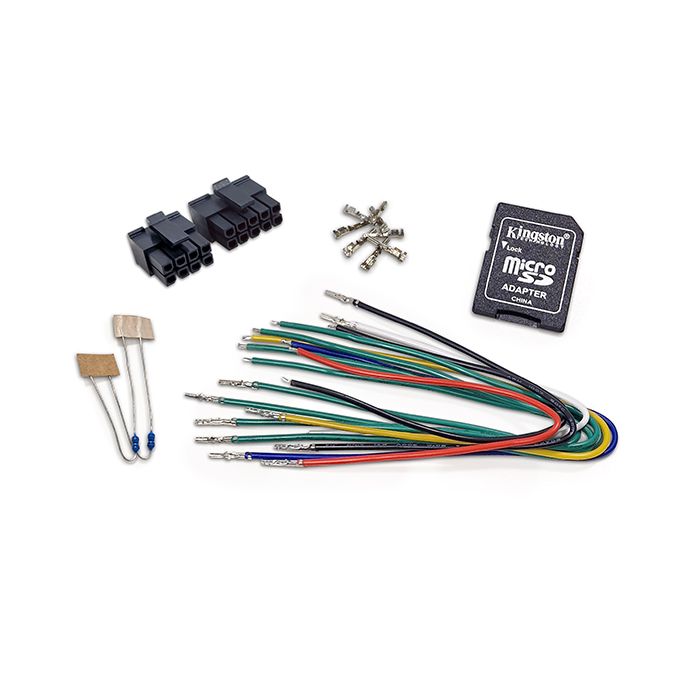
Connector Set for MFD28 / MFD32 / MFD32S / MFA28 Displays
The perfect connector set for your CANchecked MFD28, MFD32, MFD32S, or MFA28 display. This connector set ensures a reliable and smooth connection between your cables and the display, so you can easily integrate your CANchecked display into your setup.
With CANchecked Displays, you can monitor all your essential vehicle data. To make installation simple and hassle-free, we offer the appropriate connector set that ensures a seamless connection for optimal functionality.
Our Connector Set MFD28 / MFD32 / MFD32S / MFA28 includes:
- Plug A
- Plug B
- Individual pins for self-crimping
- Short connecting cables
With this connector set, you'll be able to easily connect your display to the corresponding cables and unlock all the features and valuable data your display has to offer.
Order our Connector Set for MFD28 / MFD32 / MFD32S / MFA28 today and ensure a secure and reliable connection between your cables and your CANchecked display. Maximize the potential of your display and always stay on top of your vehicle's most important data.
Why Buy From Us?
Worldwide shipping
1000's of items in stock
Multiple payment options
14 day returns period
Payment & Security
Your payment information is processed securely. We do not store credit card details nor have access to your credit card information.
Price Match Request
Related items
Recently viewed
Loyalty Points
Earn
loyalty points worth !
Free Shipping
Free UK shipping on orders over £150!
Price Match
Seen the same part cheaper? We'll match any like for like price from a UK company!
Free shipping
On all orders over £150
Satisfied or refunded
We know you'll love our products
Top-notch support
We're here to answer your questions
Secure payments
100% SSL secure payments
Opens in a new window.
PayPal Pay Later Messaging
Step 1: Choose message placement
Click the button below and then hover over your page to select a placement.
Step 2: Paste and save
You have copied the placement for the Product Page.
Go back to the App Embeds section, and in the Paypal Advanced Settings, paste the copied value into the
Product Page field and click the 'Save' button in the top right corner.